Enable Location Tracking
Staffbridge needs access to your device location so we can verify where you punch in and out. Follow the four steps below to enable it in your mobile browser.
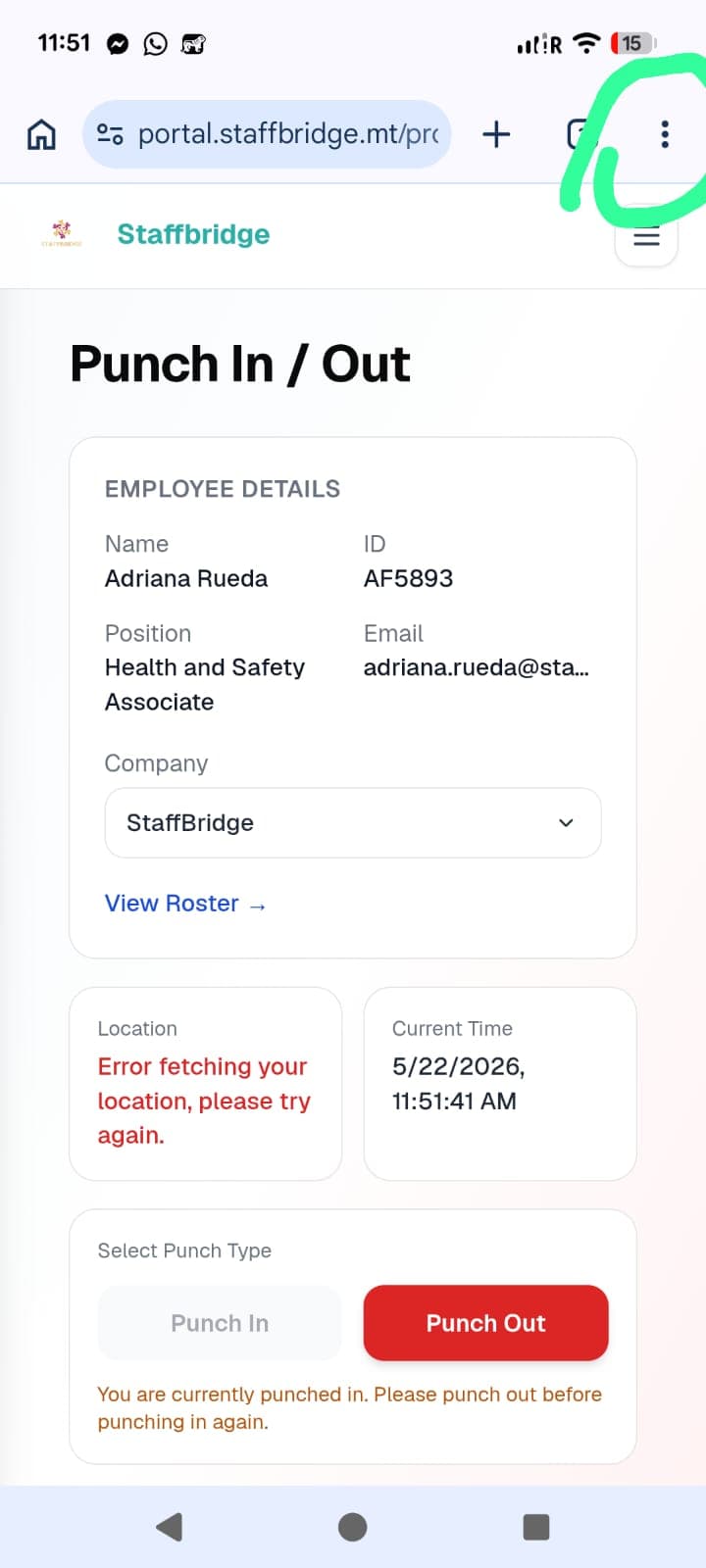
Step 1 — Open the browser menu
When you see "Error fetching your location, please try again" on the Punch In / Out page, your browser is blocking access to your location. Tap the three-dot menu (⋮) in the top right corner of your browser to begin enabling it.
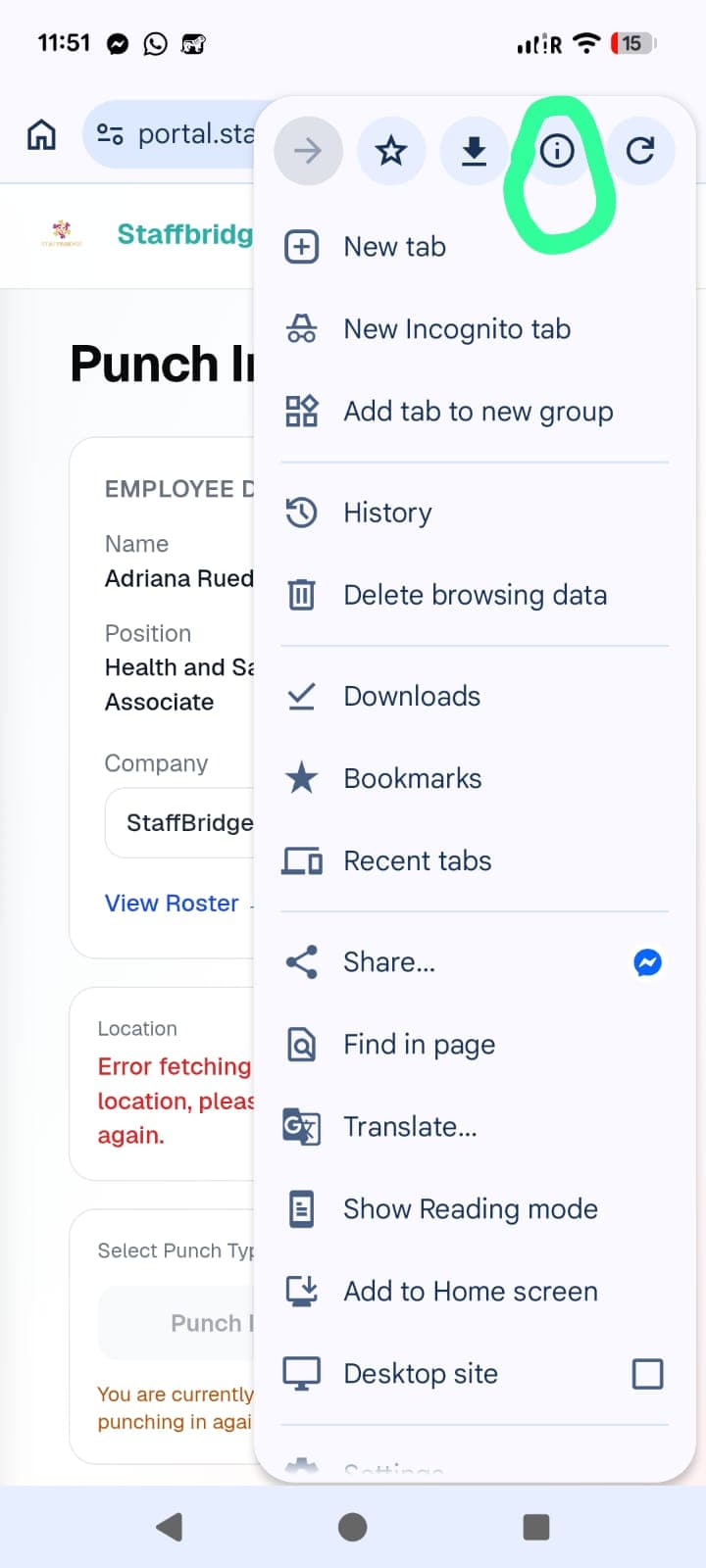
Step 2 — Tap the site info icon
In the menu that appears, tap the small info icon (the circled "i") at the top of the dropdown. This opens the site settings for portal.staffbridge.mt.
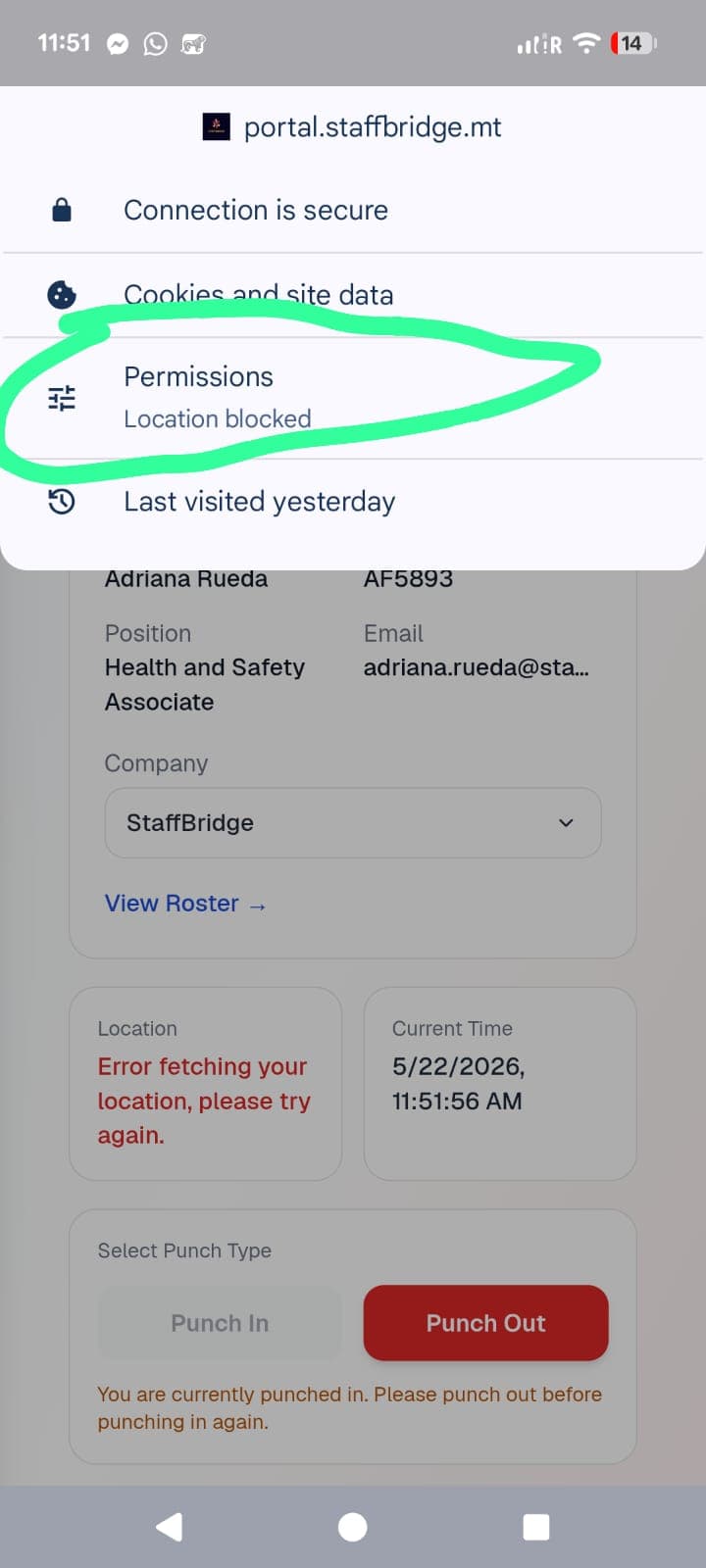
Step 3 — Open Permissions
In the site settings panel, tap "Permissions". You will see "Location blocked" listed there. Tap it to open the location permission controls.
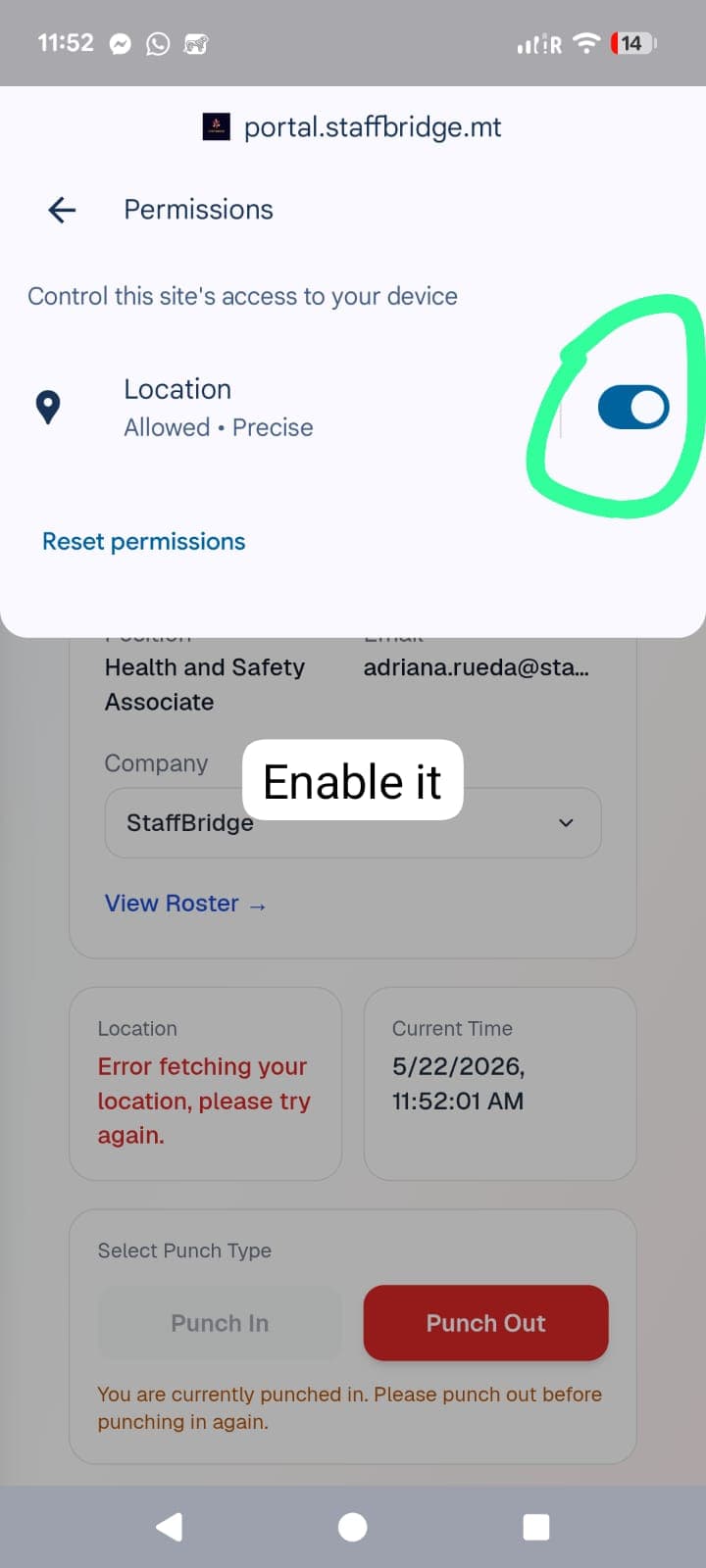
Step 4 — Allow location access
Toggle the "Location" switch ON. It should change to "Allowed • Precise". Now go back to the Punch In / Out page and refresh — your location will be detected and you can punch in or out.
Location is enabled — ready to punch in?
Go to LoginStill stuck? Reach out to support on WhatsApp.
Chat on WhatsApp